Choose a trigger
Trigger a journey with a new subscriber, an added tag, a date, an audience, or a connected event.
Automations
A new signup deserves a welcome. A useful first step deserves another. Build email journeys around the moments that matter to your audience.
Workflow editor
Lay out a journey with a trigger, a message, and a little room between each step. Add conditions where the next email should depend on what a subscriber has done.
Start with a welcome or onboarding template, or build your own flow from the beginning. Every step stays visible on the canvas.
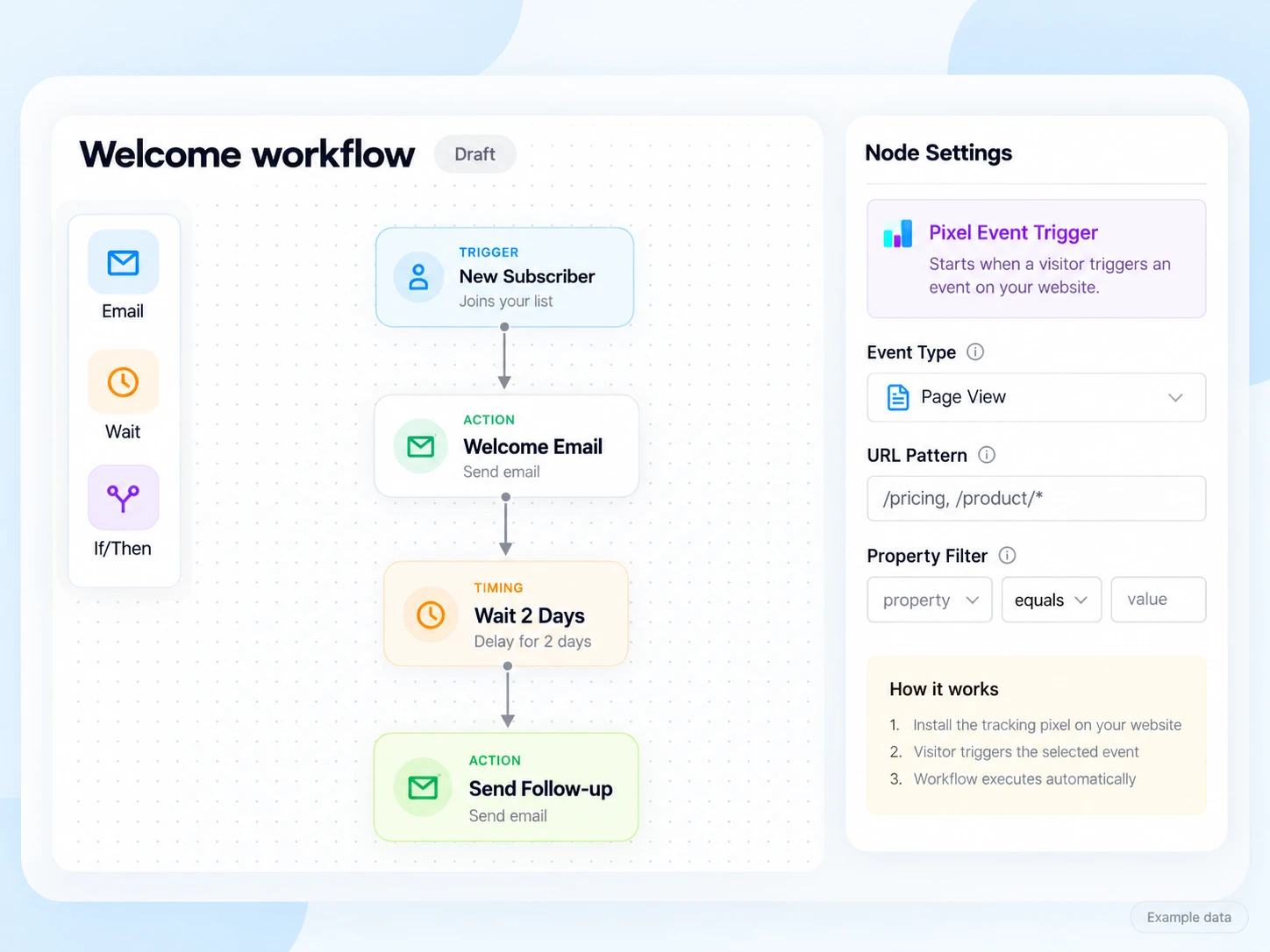
A few building blocks can make the next email feel a lot more relevant.
Trigger a journey with a new subscriber, an added tag, a date, an audience, or a connected event.
Add delays in minutes, hours, days, or weeks. Put a useful pause between a welcome, a tip, and a follow-up.
Use conditions such as tags, subscriber fields, opens, or clicks to decide which step comes next.
Quickstart guide
Welcome a new subscriber with a short introduction. Wait a day, share one useful thing, then choose the next message based on their progress.
The same building blocks can support onboarding, a launch sequence, or a return invitation. Start with the moment you want to improve.
Create the emails in your journey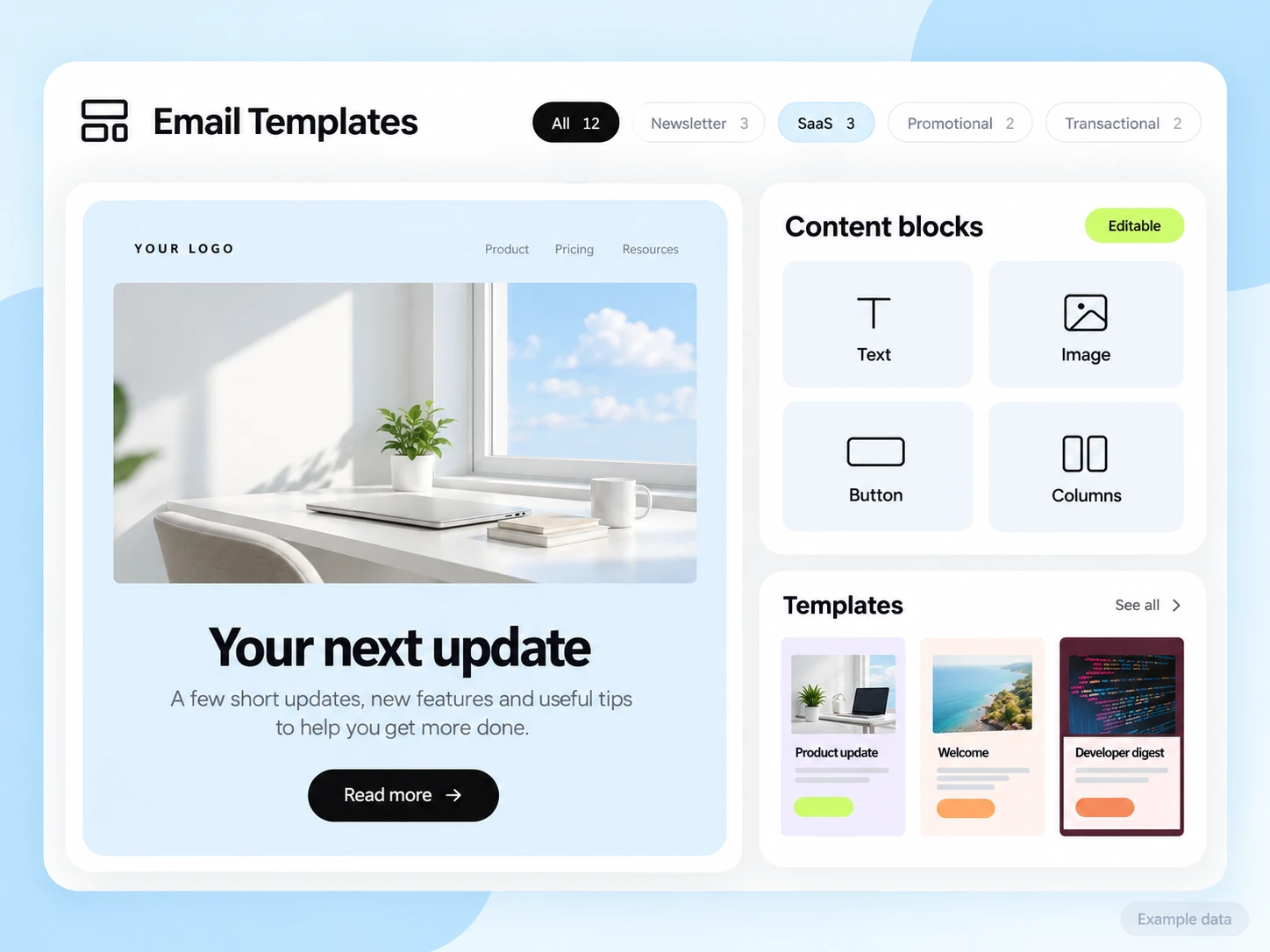
Workflow examples
A new subscriber joins. Send a welcome, introduce your best resource, and follow up after a considered pause.
Use a signup event and subscriber tags to guide people through a product introduction at a pace you choose.
Use your audience rules and connected events to invite an existing subscriber back with something useful.
Questions and answers
The visual canvas lets you arrange triggers, emails, delays, and conditions in the dashboard. Developers can use the API when a journey needs to connect with application events.
Yes. Conditions create branches based on supported subscriber and email rules, so a journey does not have to send the same next message to everyone.
Design your emails with the platform’s email tools and use them in the journey. Templates give you a consistent starting point for the sequence.
Start free
Start with one moment. Build a better journey from there.