A ticket announcement
Lead with the event, date, venue, and official ticket link. Explain the next step without inventing scarcity or sales numbers.
Email for events and ticketing
Announce events, send attendee information, and follow up after the show. Plan event email around ticket status, dates, and a clear next action.
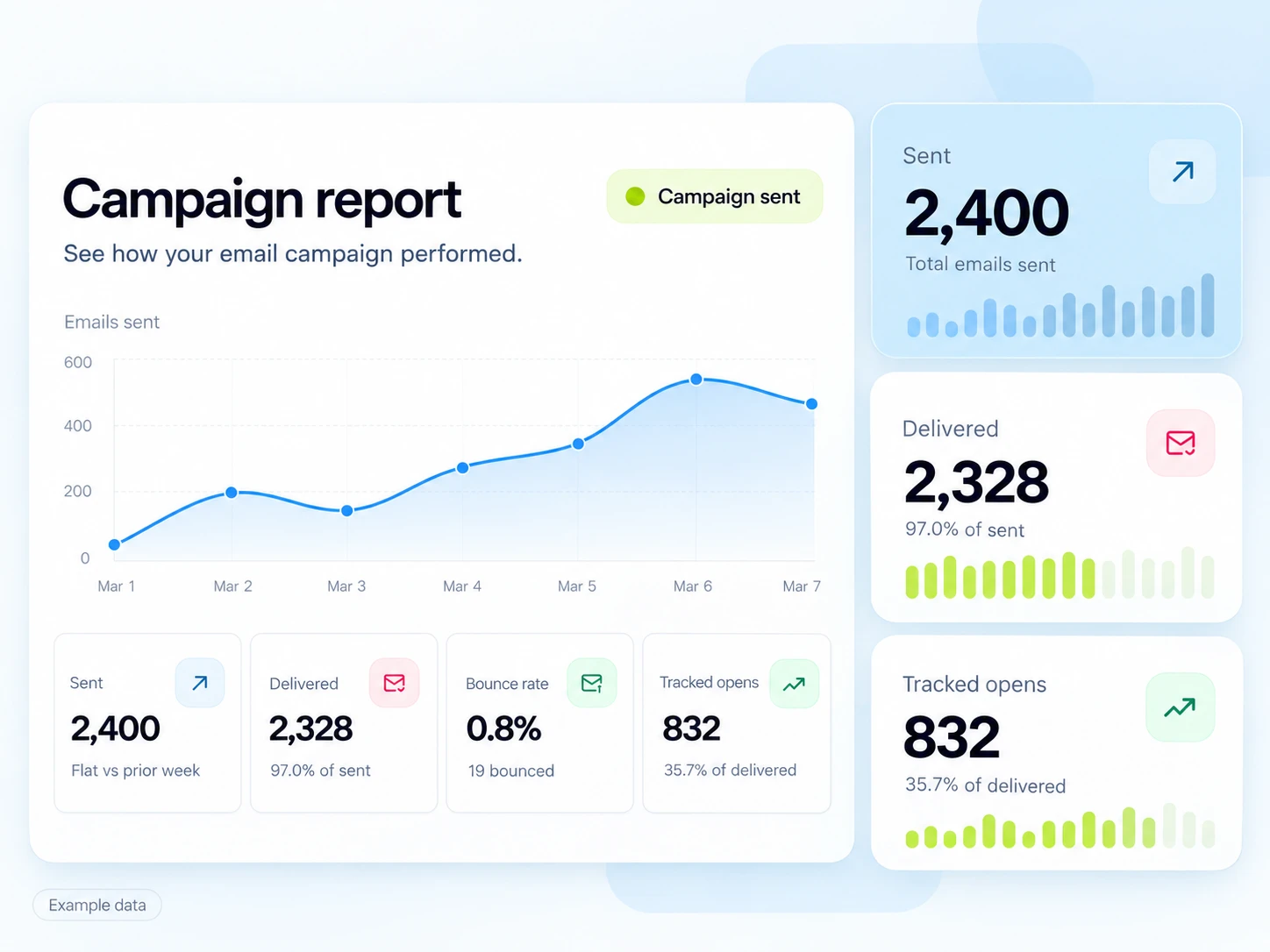
An interested subscriber and a ticket holder need different information. Use announcements to help someone decide, then give confirmed attendees the practical details needed to arrive and enjoy the event.
Separate people interested in a performer or event type from ticket holders for the current event. Keep event identity, ticket status, and the latest venue or timing information linked to your event system.
Lead with the event, date, venue, and official ticket link. Explain the next step without inventing scarcity or sales numbers.
Send entry times, location, access information, and important changes to confirmed attendees.
Share approved photos or a useful recap, thank attendees, and offer the next relevant signup to eligible subscribers.
Illustrative scenario
An organizer wants non-buyers to see the ticket announcement while ticket holders receive entry information instead of repeated sales reminders.
Use event-interest tags and valid marketing preferences. Keep an event identifier that matches the ticketing record.
Use confirmed date and venue details with the official ticket link. Test the destination on mobile.
Have the ticketing backend report completed purchases and any reversals. Reconcile delayed or repeated events before using them as workflow conditions.
Exclude confirmed buyers from the relevant sales reminder and send logistical information to the correct attendee group. Recheck changes before the send.
Example email
Here is the confirmed time, venue, and entry information. Save this page and check it again before you travel in case anything changes.
Example button: See event information
Adapt the wording, links, and timing to your actual offer and audience. This example does not describe a published customer campaign.
See the email editor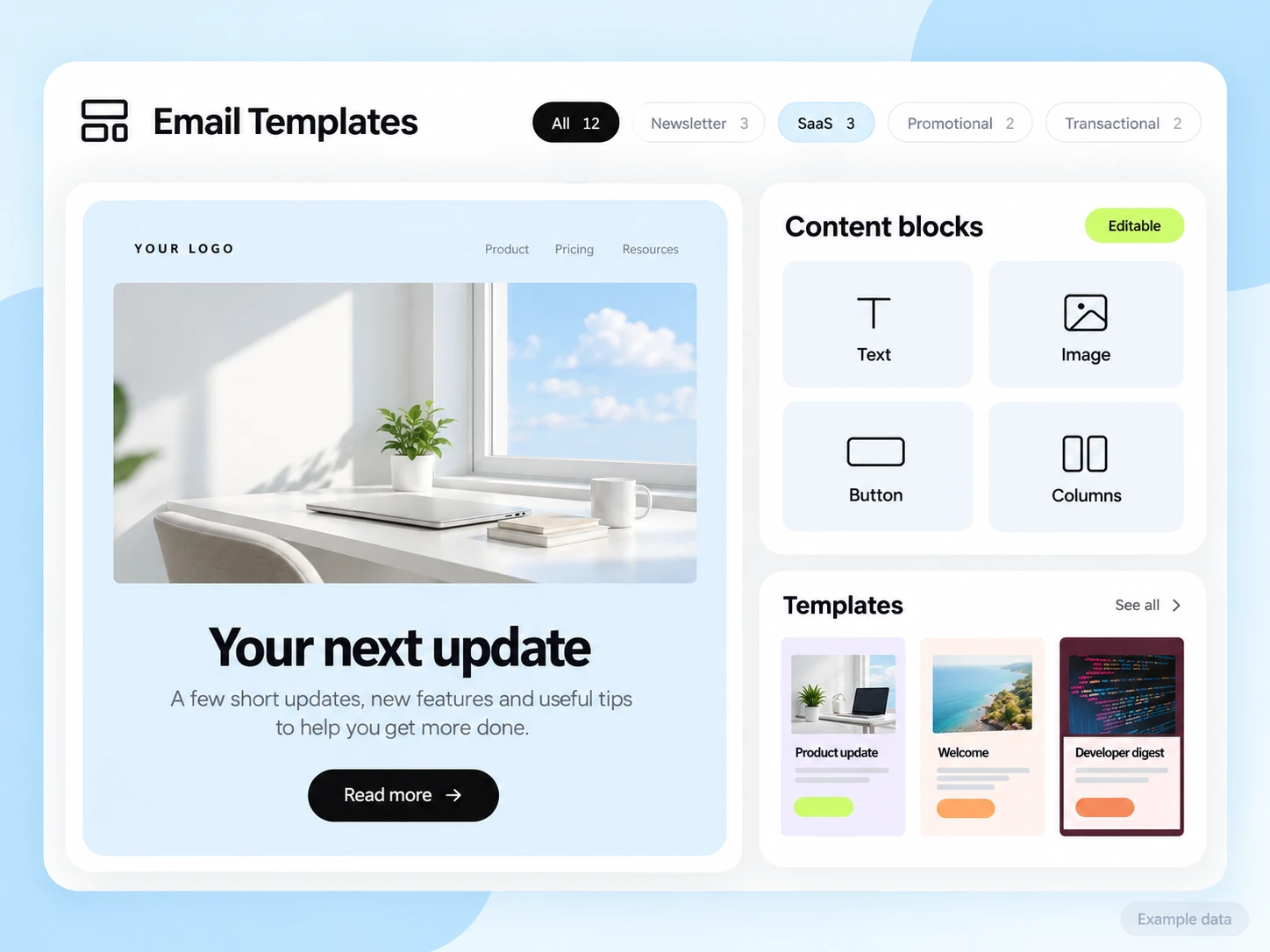
Your ticketing platform supplies orders, refunds, attendee state, and ticket documents. A developer must connect those records if they are used in email decisions. SendMailOS does not issue tickets or validate entry by itself.
Start with the setup guides and the API and SMTP documentation. Verify the domain, audience, template, and a complete test journey before sending to real contacts. Feature availability and limits depend on the plan.
Measure confirmed ticket orders and attributed revenue in the ticketing system, accounting for refunds. Count delivery and attendee support replies separately from ticket-sales conversions.
Choose an attribution window before sending and keep its definition consistent in your report. Keep unavailable tracking marked as unavailable. The product illustrations on this page use example data and are not a promised or measured result for this industry.
Customer conversations
Use a monitored reply path and configure supported reply capture. Test that a reply stays connected with the right outgoing message, then agree who will answer it.
Keep the customer’s current state in your own source system when it determines what should happen next. A reply and a completed business action are different signals.
Explore customer replies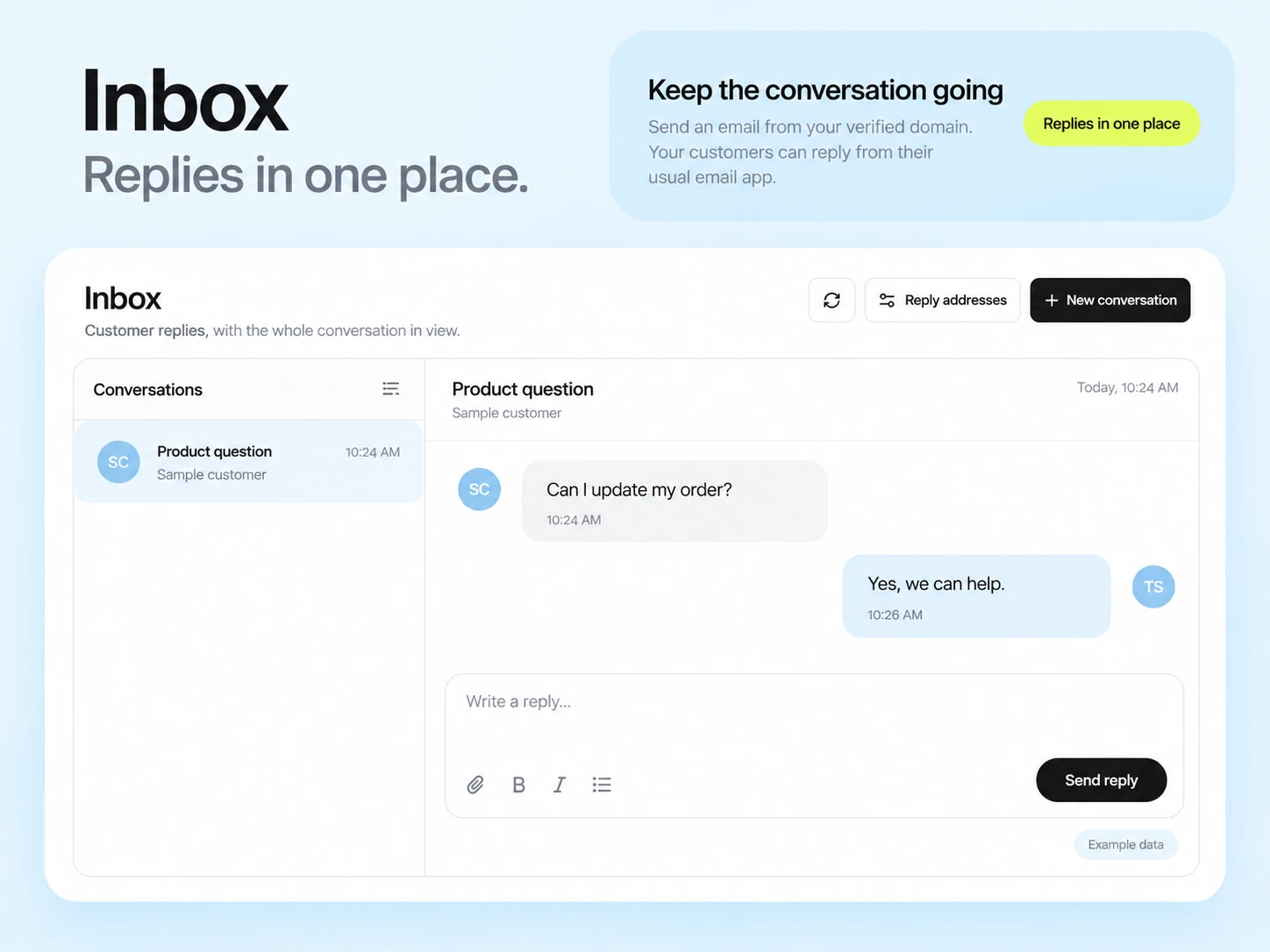
Use a current verified figure from the ticketing source, and describe what it counts. Do not turn an example, reservation, or estimate into a sold-ticket claim.
Update the source event record, check the affected attendee audience, and send accurate operational information. Pause or revise scheduled promotional messages that still contain old details.
Example campaign plan
Use a current attendee export from your ticketing process and remove canceled or transferred registrations. Keep required event information separate from optional promotional audiences. Ticket changes need a fresh export or a separately configured integration.
Example subject: “Your event-day checklist.” Include the real date, venue, entry time, accessibility contact and a link to the official arrival guide. Do not place a generic example ticket or invented QR code in the message.
Check the guide on a phone and confirm replies reach the event team. Reconcile ticket status with your ticketing records; tracked opens do not prove that an attendee received or read the instructions.
3,000 email credits each month and up to 2,000 subscribed contacts on Free. Other plan limits apply.